
1. Create designs
Open a project’s Screenshots tab and click New Designs…. Choose the sizes you need (iPhone, iPad, Mac, Apple Watch, Apple TV, Apple Vision Pro, iPhone Duo, the product page header and the search results artwork), a layout, the colors and a headline. Each size gets its own design with a layout that fits it.
Product page header and search results designs show Apple’s safe area, so the important part stays visible on every device.
2. Edit
Drag layers on the canvas to move them, drag a corner to resize, and use the inspector on the right for the background (solid, linear or radial gradients), text (font, weight, size limit, alignment, line spacing), shapes, shadows, rotation and opacity. Add inserts text, images, shapes or a device frame.
Drop a screenshot of your app onto the device in the canvas. Text shrinks to fit its frame, so long translations never spill out.
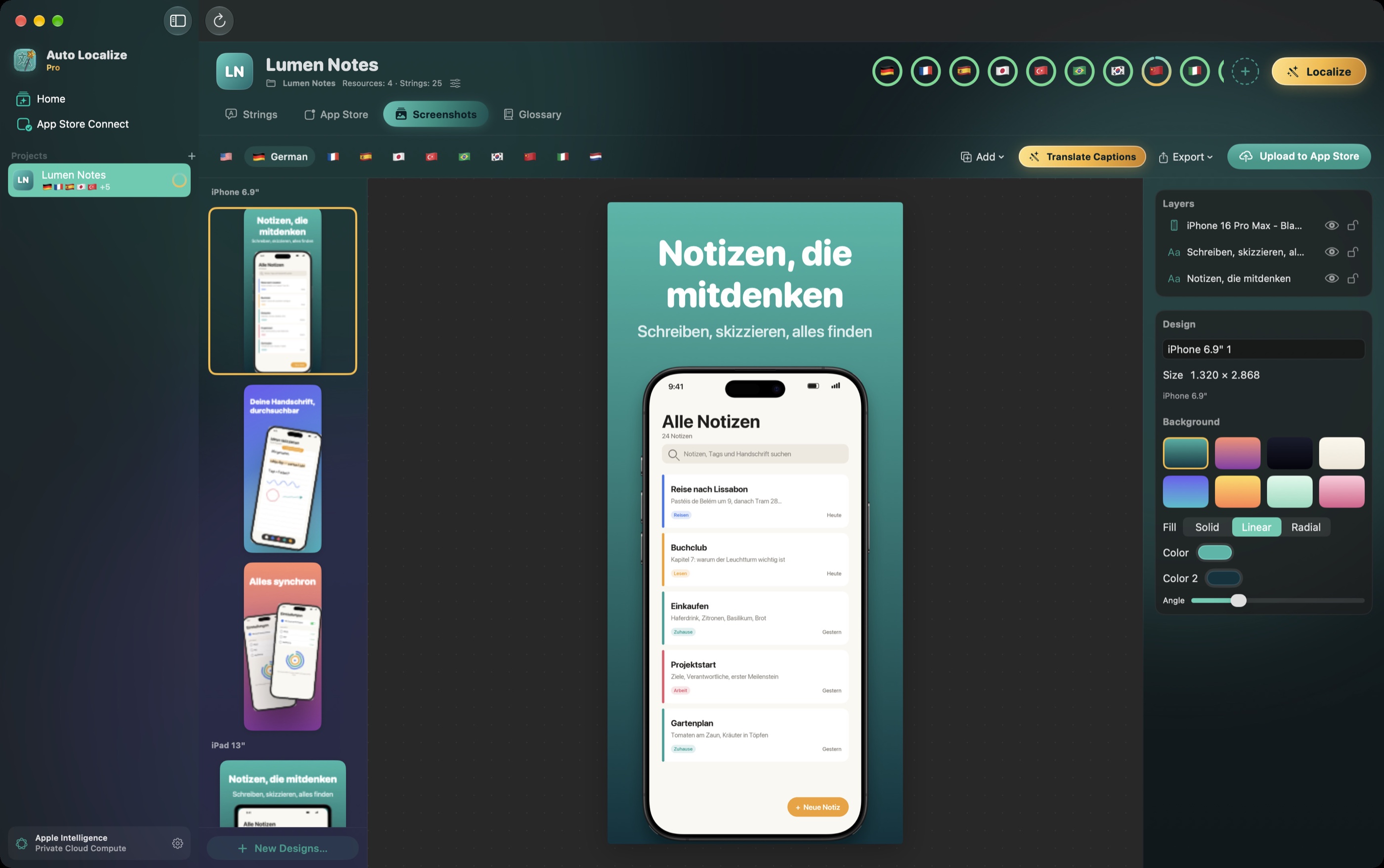
3. Translate the captions
Click Translate Captions: every text layer is translated into the project’s languages with your glossary and tone. Switch languages with the flags at the top to check each one; write your own text for a language in the inspector whenever you prefer it to the AI translation.
Each language can have its own screenshots: select the language at the top and drop that language’s screenshot onto the device, or choose it in the inspector (Choose for …). Languages without their own image use the default one.
4. Export or upload
- Export saves PNG files for the current language or for every language, named by size and language.
- Upload to App Store sends the designs of each language to the version you are preparing in App Store Connect, replacing that language’s screenshots for those sizes. iPhone Duo screenshots and the header and search results artwork go to the Asset Library.
Uploading needs a linked App Store Connect app (see Localizing your App Store page) and a version that can be edited.