1. Connect App Store Connect
Create a team API key with the App Manager role in App Store Connect (Users and Access → Integrations → App Store Connect API) and download the .p8 file; it can be downloaded only once. In Auto Localize open Settings → App Store Connect, paste the Issuer ID and Key ID, choose the .p8 file and click Test Connection.
The key stays in your Mac’s keychain. Auto Localize talks directly to Apple’s App Store Connect API; nothing goes through a server of ours.
2. Open your app
Click App Store Connect in the sidebar and pick an app, or open a project’s App Store tab and link the project to its app. A linked project uses the same glossary, description and tone for the store texts as for the app itself.
The version menu next to the app name switches between versions; New Version… creates the next one (App Store Connect copies the texts of the current version, and release is set to manual).
3. Product page
The left column lists every App Store language of the app with how complete it is; Add Languages… adds new ones. Each field shows its character count and Apple’s limit. Turn on Show English (your primary language) to edit side by side.
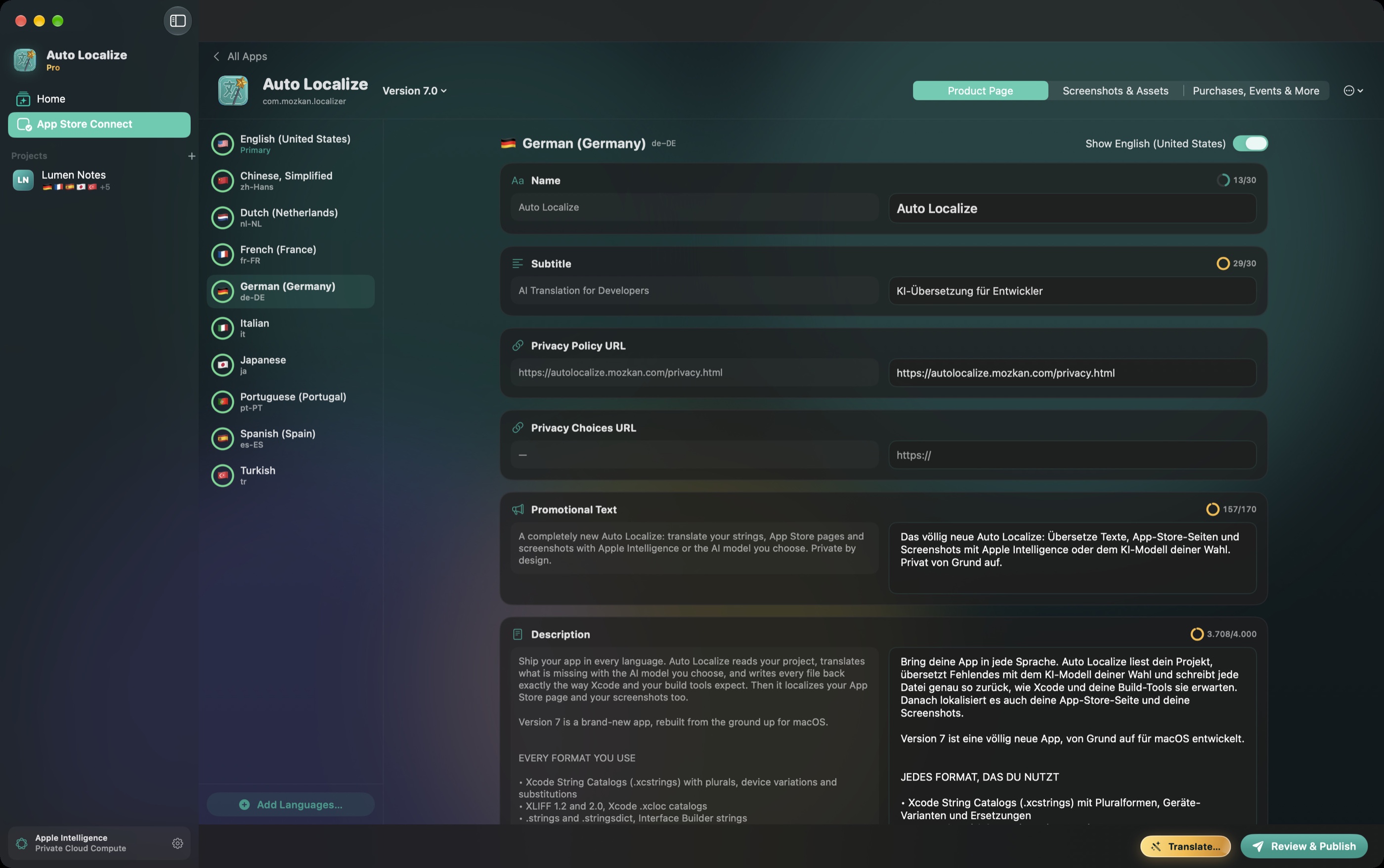
Click Translate…, choose the fields and languages, and decide whether existing texts may be replaced. Keywords are not translated word by word: the model picks search terms people use in that market, removes words that are already in the name or subtitle and keeps within 100 characters.
Only the promotional text can change while a version is live or in review. To change anything else, create a new version.
4. Purchases, events and more
Under Purchases, Events & More you find in-app purchases, subscription groups, subscriptions, in-app events, custom product pages, achievements and leaderboards, each with the fields App Store Connect lets you localize (display name, description, event texts, Game Center names and score formats). They are translated and published the same way.
5. Review and publish
Changes stay on your Mac until you click Review & Publish. You see every change with the old and new text, then publish them in one go. New App Store languages are created as needed.
6. Screenshots and artwork
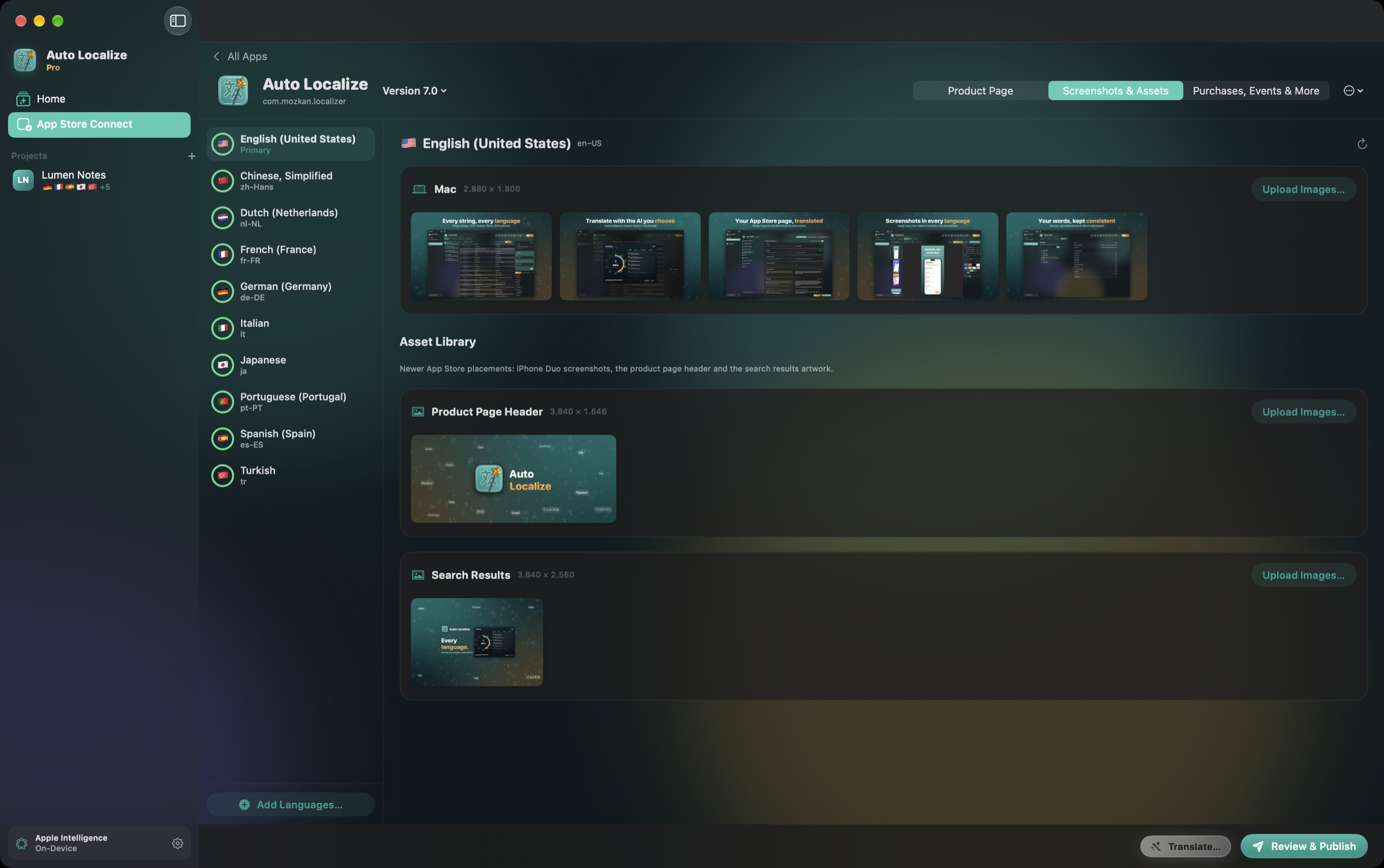
Screenshots & Assets shows the screenshot sets of each language and the Asset Library placements: iPhone Duo screenshots, the product page header and the search results artwork. Upload images, or send your Screenshot Studio designs straight from here.